GENERAL INFO :
MIDI CONNECT CHECK is MCC.
To test a Midi setup quickly, a simple and clear overview is welcome. All the
basic elements to perform a test are present in the MCC main window. With the
virtual keyboard, notes can be played to quickly check the operation of
connected devices.
More becomes possible after opening the Voice List section, such as listening to
Program Changes on various Midi channels. MCC can also use a Midi file for this,
which is automatically played immediately after each Program Change.
MCC is the ideal tool for any Midi studio. A complete Midi setup can be set
using easy to record commands. Each recording or Record can consist of a multi-
channel mix of Program Changes, Controller Changes, System Exclusive Data and
even Midi port selections. After entering a name, it is added to the list and
saved. Each Record can be converted to a Midi file for use in a DAW. An Edit
mode makes it possible to make adjustments or to delete a Record completely. To
expand an existing Record, select it, press the Record button and add the new
commands.
MCC can record, save, load, play and / or visually display sysex data. Play or
analyze various Midi File Formats (0 and 1, karaoke, style, voice, preset etc.)
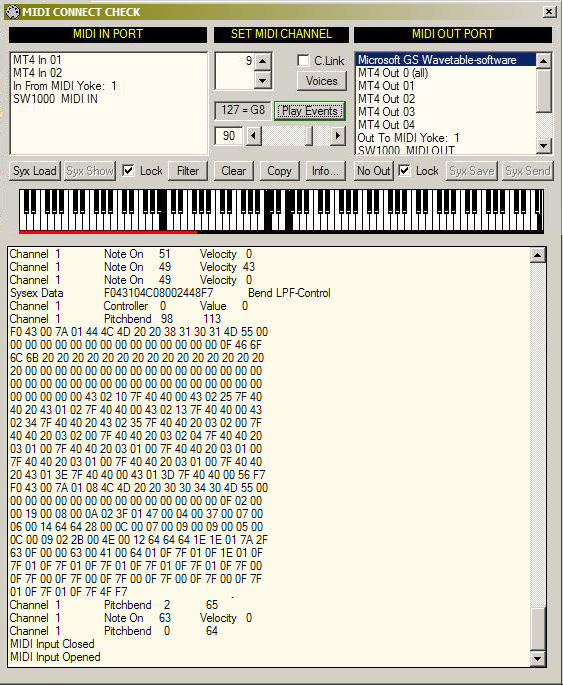
DESCRIPTION :
The components of the MCC program. By moving the mouse pointer over a part, a
corresponding small explanation is shown, for support.
-
The large area at the bottom is the Input-Output-List in which all 'Midi
actions' are displayed. If no Midi Out is active, when playing a Record,
only its contents are shown (a safe check mode).
-
Midi In Port, Midi Out Port
: these lists show the connected Midi In and Out ports, dark blue if last
selected. Midi data is received via the input and sent via the output.
-
Set Midi Channel ... the Midi channel for Output is set here (from 0 to 15, the
real values for Midi channels 1 to 16).
-
CLink or Channel Link
automatically aligns the Midi Output channel with the received Midi Input
channel.
-
Voices opens or closes the Voice List section of MCC (see figure below).
-
Play Notes transmits a range of notes, from the very lowest to the very
highest (0-127) with the set volume and channel, on the selected Midi Out
port (a simple method to test a connected Midi device).
If a Midi File has
been dropped on the Input-Output-List (Drag & Drop), its contents will be
displayed. The Play Notes button becomes Play Events and now serves to play
this file. When 'dropping' a next Midi file, the previous content on the
Input-Output-List is automatically deleted.
A default path to 'Midi files'
can be set.
-
The keyboard displays the notes played on the corresponding Midi channel. At
Play Events (playing Midi Files) a 'Time bar' is displayed, pausing ensures
that the corresponding event timing is made visible in the Input-Output-
List. These time displays are just a tool, not an exact science.
-
Lock , if
the program becomes inactive, the Midi ports are also released, if disabled.
This way they can be used by other Midi software without having to close
MCC.
-
Filter retains both the display and the sending, receiving from the
System RealTime Messages if active.
-
Clear clears the Input-Output-List and associated internal data. The content
of files is retained unchanged. Only when recording Sysex data is a warning
given to possibly save the data first.
-
Copy, yep ... copies the contents of
the Input-Output-List in text format as shown (Fits afterwards in a word processor, etc.)
-
Info opens these help pages in the standard browser.
-
No Out de-activates the Midi-Out port.
-
Syx Load to load a sysex bulk file (file with all voice data for a specific
synthesizer). A default path to 'sysex bulk files' can be set.
-
Syx Save to save received sysex bulk data in a file.
-
Syx Show to display the received sysex bulk data in hexadecimal form
(standard display in manuals).
-
Syx Send to send the received sysex bulk data on the active Midi Out port.
In the Voice List section of MCC, the user has all options available to arrange
a complete Midi studio. For each device that understands Midi Events, the user
can create a
'Userfile' in which all this data is mentioned. These User files
are therefore a very important part and must be built up accurately. Also some
complete Userfiles are delivered to MCC as an example. These lists are ready for
use for the devices whose name is given to the file. Some lists can be used for
multiple devices. This can be done by using one and the same list or renaming
this list for the various devices.
Errors in the layout of these Userfiles can lead to all kinds of problems and so
the use of the program and associated data is entirely at your own risk.
Information on how to build up your own Userfiles is provided, see below. Some
Userfiles are also supplied with the program as an example.
To test the operation of a Userfile, it is best to add it
to the default User folder, disable the Midi ports and try.
All the paths to these default folders can be set via menus under Settings.
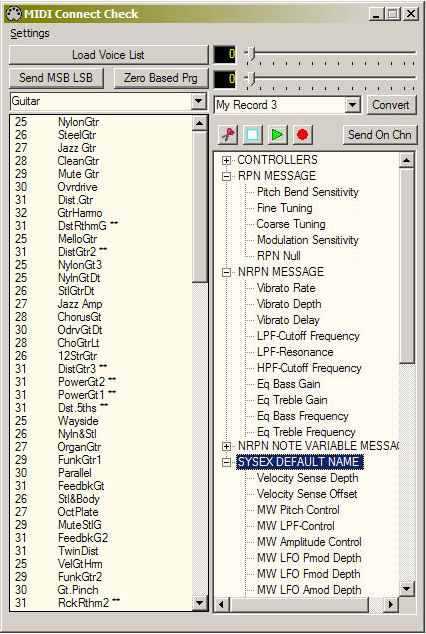 DESCRIPTION :
Left.
-
Pressing the Load Voice List button places the names of each User Voice
List, from the default User folder, in the Voice List. The desired User
Voice List can now be selected to display its content. The User Voices
(Program Changes) end up in the Voice List, all Controller combinations and
Sysex Strings in the Controller List next to it. Voice Group distributions in
box above the Voice List.
-
Send MSB LSB sends the Bank Select Messages when selecting a voice (if
entered in the Voice List). Without being pressed, only the Program Change
is sent.
-
The Voice List only shows the name and the Program Change number, the Bank
Select Messages are masked. These are displayed on selection in the Input-
Output-List.
-
All Voice Groups selection box, divides the Voice List into the specified
groups (if this division was also made in the User Voice List).
- Zero Based Prg reduces the Program Change number by one (1). An easy to
implement correction, because some devices list their voices by default,
starting from one. Midi uses default value zero (0) for Program Change
number one. Similarly for Midi channels (Channels).
Right..
-
Two sliders to set variable values. These become active depending on whether
the Controller combination or Sysex String requires values. (See explanation
below.)
-
The Record box, in which all the created records are listed. The records
can be assigned a default folder in which they are all stored. (A record can
also be opened in a regular text editor.)
- If the Convert button is pressed after selecting a Record, it is converted
to a Midi File. That file can be loaded into any DAW. The Midi Files can
also be saved in a default folder.
- Creating a new Record starts with the second button (white rectangle). After
specifying a name for the Record, all elements in the lists can be selected.
Every action that is recorded will be shown in the Input-Output-List for
verification. Corrections and / or extensions can always be made later.
Midi Channels can easily be changed by numeric entry on the NumPad part of a
computer keyboard. Here too the channel number is converted to the Midi
standard, 1 becomes 0 etc.
- By turning off the red Record button the recording will be stopped. The
Record is now saved and added to the list.
- With the Play button (green triangle) the Record is played again, and shows
every action that was recorded in the Input-Output-List.
- If the Edit button (scissors) is pressed, recorded actions (items) in the
Input-Output List can be deleted by selecting them.
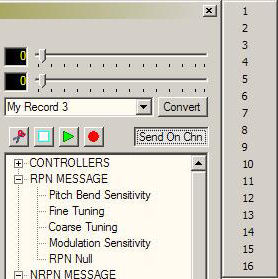
- With the Send On Chn button, a Record is sent to the active Midi port on the
Midi channel selected from the opened list (see figure below).
-
In the large Controller List below all other Midi commands from the User
Voice List are listed. This list has a function such as the explorer,
folders that can be opened and closed. Each folder contains a component
corresponding to the structure of a User Voice List. A selection in this
list appears in the Input-Output-List and can be part of a Record upon
recording.
If the use of the sliders is necessary to adjust variables in a selection,
these will be activated 'automatically'. This automaticity occurs because
MCC detects the 'NN' designation for variables in a selection. (See below
for the structure of a User Voice List).
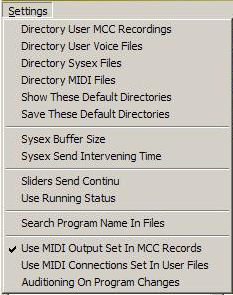
SETTINGS MENU DESCRIPTION:
-
All the default folders to be set:
Directory User MCC Recordings
Directory User Voice Files
Directory Sysex Files
Directory MIDI Files
Show These Default Directories
The default folders are displayed in the Input-Output-List.
-
Save These Default Directories
The set default folders are saved. After each change, it is best to perform this operation.
-
Sysex Buffer Size
If the standard size of 1024 bytes for the buffer, intended for receiving and sending system exclusive data, must be adjusted. If there are no disruptions during sending and receiving, nothing needs to be changed.
-
Sysex Send Intervening Time
After a buffer has been filled for sending or receiving system exclusive data, a pause can be inserted to avoid possible malfunctions. By default this is set to 0, so no pause. Poor equipment and / or operating systems may require higher values, yep MIDI is mostly fast enough.
-
Sliders Send Continuous
When switched on, any change to the sliders is also sent out. Useful for making a gradual progress for the Volume Controller, for example. Switched off, only the value is transmitted when the sliders are released.
-
Use Running Status
Playback with Running Status reduces the Midi data to be sent with Record Play (see explanation below).
-
Search Program Name In Files
First press the Load Voice List to get all the User Voice Files listed. Now you can search for a Voice name in all lists with this function. The result is shown in the Input-Output-List.
-
Use MIDI Output Set In MCC Records
When enabled, the Midi Ports are selected when playing a Record as they were recorded. Only one port is opened at a time, the previous one is closed again.
-
Use MIDI Connections Set In User Files
When enabled, the Midi Ports according to the number in the User Voice Files under [MIDI CONNECTIONS] are used to activate. This numbering must be investigated and entered by the user himself, as each set-up can contain a different number of Midi Ports. If you do not want to use this function, deactivate this menu or set the values in the User Voice Files to 255; for the Midi Input followed by 255; for the Midi Output.
-
Auditioning On Program Changes
This function is to make it easier to work when selecting sounds, on Midi equipment this is done with Program Changes. Upon activation, a Midi File is searched for which MCC will use to play automatically after each Program Change. If no Midi File is selected, then some internal events will be played. Deactivate the function to end this.
Attention when using an external Midi File, only the Program Change on the current Midi channel is filtered out.
INFO FOR CREATING NEW LISTS:
The Midi standard was taken into account as much as possible for the construction of a User Voice List. Of course there will be devices that may deviate from this standard and are therefore more difficult to operate. A few extensions have already been added in MCC in order to be able to operate that different set-up. If there are still important restrictions, this can always be communicated. Possible ...
The easiest way to create a User Voice List yourself is to thoroughly study the very extensive example of MU128 Voices.txt. All the more so if you have little knowledge of Midi. You can learn more via the internet or follow a course at AUDIO-COLLAGE.
The keys below represent all possible distributions, which may be present in a User Voice List.
MIDI CONNECT CHECK DATA;
[MIDI CONNECTIONS]
[PRG VOICES]
[MSB PRG VOICES]
[LSB PRG VOICES]
[MSB LSB PRG VOICES]
[MSB LSB PRG DRUM KITS]
[MIN MAX VOICE GROUPS]
[CONTROLLERS]
[RPN MESSAGE]
[NRPN MESSAGE]
[NRPN NOTE VARIABLE MESSAGE]
[SYSEX DEFAULT NAME]
[GROUP]; GROUP NAME;
Each User Voice List must begin with
MIDI CONNECT CHECK DATA at the top ; with the point comma at the back. This key is for checking purposes only. This text file can be recognized by MCC. The txt extension gives many more options, so ...
Below that
one blank line and the next key, copied in exactly the same way, brackets including if present (Copy and Paste). After each key there are a number of lines with values and a designation, each separated by and ending with one
; (semicolon). A subsequent key with number of lines must always be separated by one empty line.
Explanation of next key, distribution. If not necessary or desired, leave it out.
[MIDI CONNECTIONS]
255; 002;
These two numbers determine the Midi Port index, according to the order in the
Midi In Port, Midi Out Port lists. If a port does not have to be detected, set the value to 255.
[PRG VOICES]
[MSB PRG VOICES]
[LSB PRG VOICES]
[MSB LSB PRG VOICES]
The Program Change distributions. From this the user must choose one corresponding to the operation of the Midi device in question. If the device only works with Program Changes, without any
Bank Select, you can choose
[PRG VOICES].
All the other keys ensure that MCC also sends Bank Select Messages, depending on the type of MSB or LSB, or both. Sending this can be switched on or off with the
Send MSB LSB button. Disabled means only sending Program Change. The most common choice is the last
[MSB LSB PRG VOICES].
000; 000; 001; GrandPno;
It contains the first two numbers for the
Bank Select values of MSB and LSB. Their Controller number is determined by MCC itself on the basis of this key. The last number is the value for the Program Change, here GrandPno.
[MSB LSB PRG DRUM KITS]
Forms a separate key, separate from the Program Change distribution because it defines a group of sounds. Every key or note has its instrument. The set-up is done the same to [MSB LSB PRG VOICES].
[MIN MAX VOICE GROUPS]
Some devices offer the possibility to group all their sounds into groups according to type. The name for each species will be placed in the
All Voice Groups box.
This sorting is made possible by the range of the Bank Select values for MSB and LSB. To perform this sorting, the user must consult the manual of his device. Not all devices offer this option.
[CONTROLLERS]
007; 127; Volume;
This key with accompanying rules is based on the Midi standard and can in many cases be taken over completely (Copy and Paste). Every Midi device can normally be operated with all these controllers.
The first number in this example stands for the controller number itself and has the standard name (7 for Volume). The second number is not mandatory, but determined in this, a default value on which the slider is set. Other values are then controlled in MCC with this slider.
[RPN MESSAGE]
101; 000; 100; 000; 006; Pitch Bend Sensitivity;
This key with associated rules is based on the Midi standard. This contains both the controller numbers and their values. Only the value of the last controller (6 or Data Entry) is determined with the slider in MCC itself.
[NRPN MESSAGE]
099; 001; 098; 008; 006; Vibrato Rate;
This key with associated rules is based on the Midi standard. Also here are both the controller numbers and their values. Only the value of the last controller (6) is set in the MCC itself with the slider.
[NRPN NOTE VARIABLE MESSAGE]
099; 020; 098; NN; 006; 063; 127; Drum LPF-Cutoff Frequency;
This key with associated rules is based on the Midi standard. Here too the controller numbers are present, but with one fixed value, namely 020. The double NN indicates that it is a variable, the value of which is determined by the second slider.
In this special case, that variable value can also be indicated by the note value on the virtual keyboard in MCC. This set-up is very useful as it involves separate sound arrangements of a drum kit, with each note having its sound.
The last controller (6) uses a variable value determined by the first slider. In this example, both variable controllers already have a default value (63 and 127). These determine the position of the sliders when selecting.
[SYSEX DEFAULT NAME]
F0 43 10 4C 08 NN 0C NN F7; 00; 40; Velocity Sense Depth;
This key with associated rules is determined by each device itself. The structure of the System Exclusive rules must be in accordance with the Midi standard, starting with F0 and ending with F7. The double NN indicates that these are variables, the values of which are determined by the sliders in MCC.
In this example, both variables already have a default value (0 and 40 hexadecimal).
FAQ
Q.
Can MCC also record notes?
A. No; MCC is only meant to set up Midi devices in an easy way.
Q.
What does MCC cost?
A. Nothing.
Q.
How long has MCC been around?
A. Not a correct idea, but the oldest file date can be found on 2011. MCC has now been completely revised, with all ideas that have arisen in the meantime added. The current version is most likely the last, possibly a bug fix, if it appears necessary.
Q.
What is 'Running Status'?
A. There are two options for the 'Running Status':
1)
In a midi file the Running Status can be used to avoid having to repeat every command for the associated variable value. The Running Status therefore determines the last midi command that is now only followed by a series of values, until a following command takes over the function of Running Status.
2)
With RPN or NRPN messages, a Running Status can often be used. The MSB and LSB controller are then only sent at the start of a new message, only to then send the last controller with its variable values. It is possible that not every Midi device supports this 'saving method'.
Q.
Which User Voice List already exist?
A. All available User Voice List will be added to the
"De linke pagina..."
Users who want to share their own lists with others can always send them by email.
Only email with
this title 'Voice List' via the website
http://www.vdvb.be/audiocollage/

